1
Click "Set up email invites"
From your Trustpilot Business dashboard, start the flow by clicking "Set up email invites".
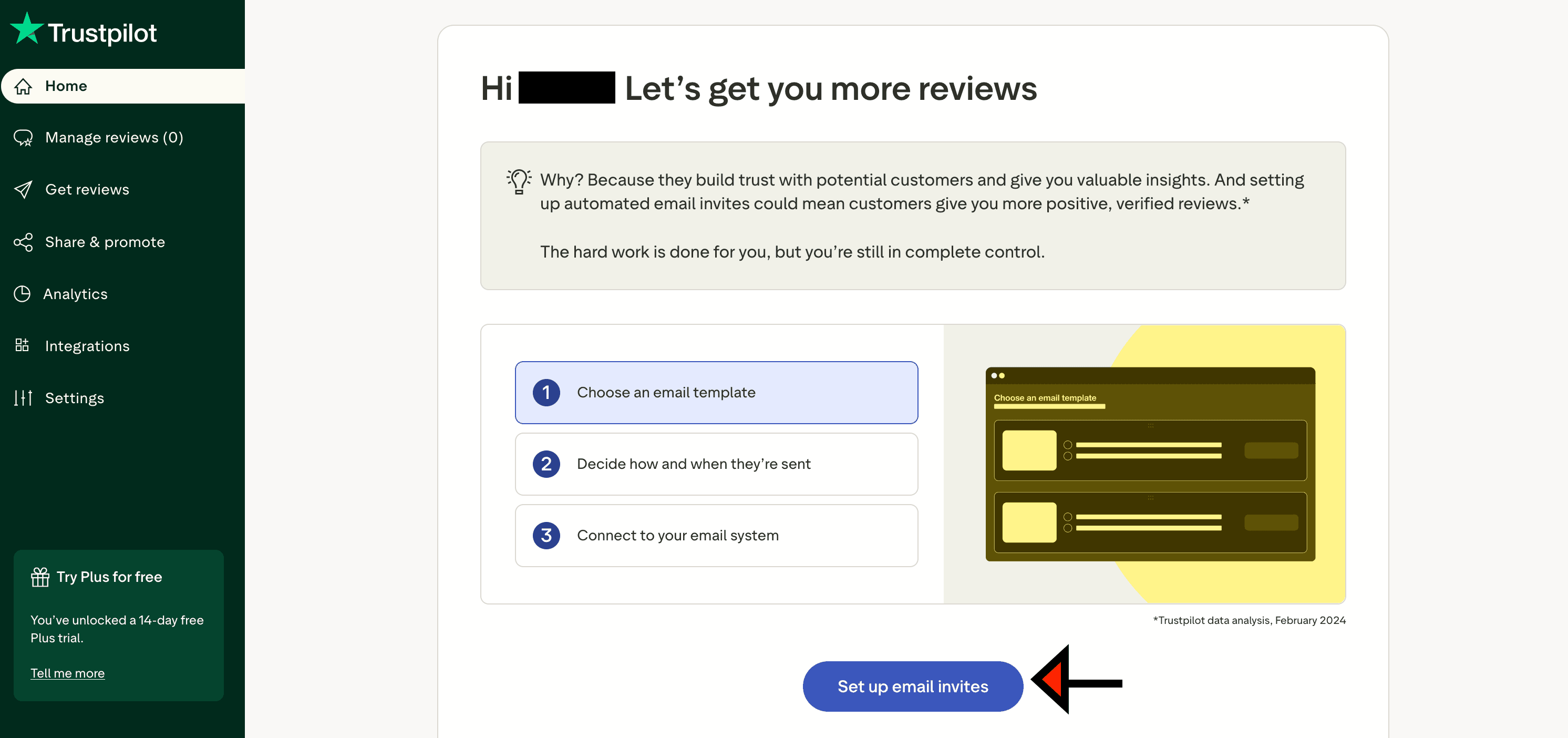

Follow this flow to collect the invite details needed for Trustpilot premium verified orders.
Make sure you are logged into your Trustpilot Business account with permission to access Get reviews / invitation settings.
Need listing URL instructions too? Open the business listing URL guide.
From your Trustpilot Business dashboard, start the flow by clicking "Set up email invites".
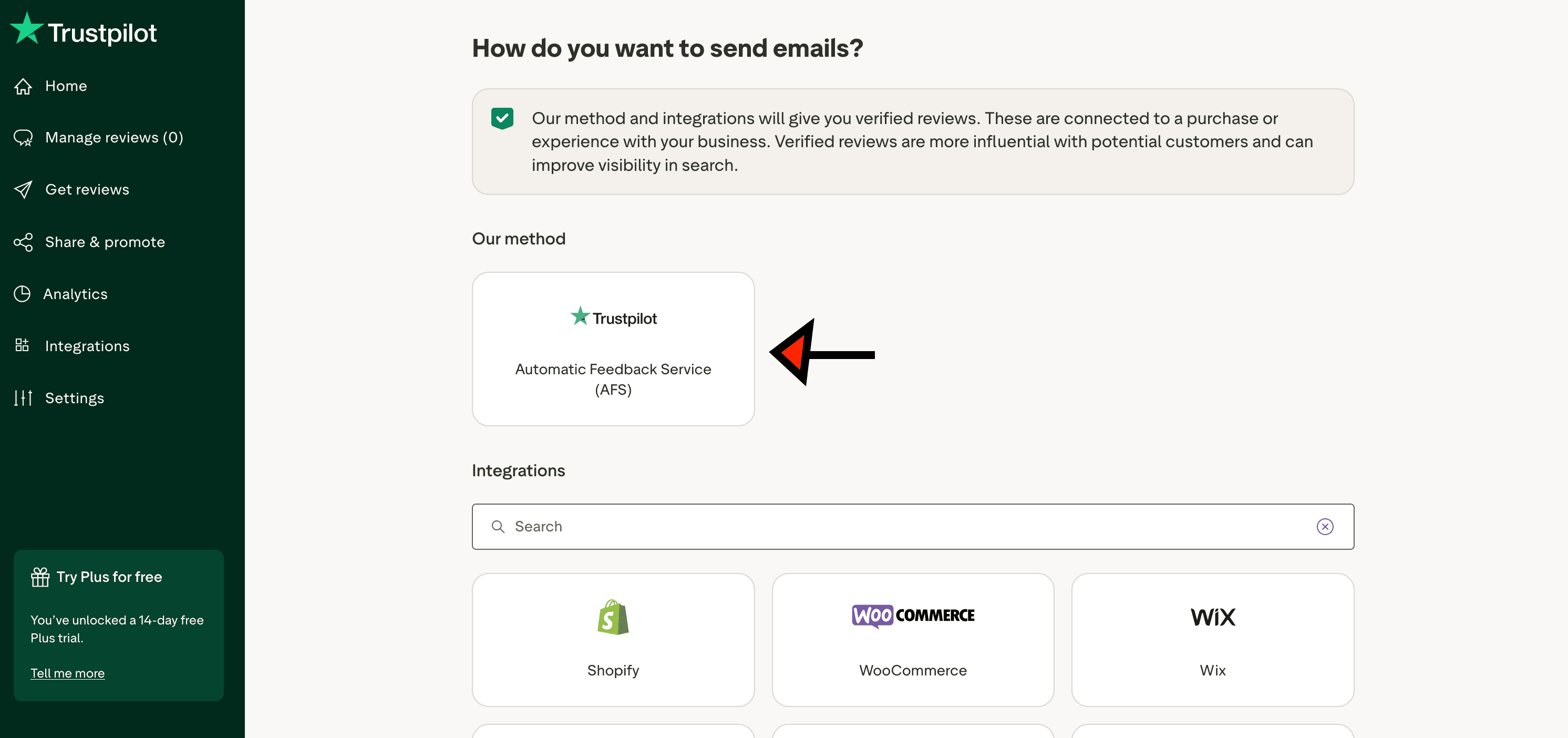
On the send-method screen, select Trustpilot Automatic Feedback Service (AFS).
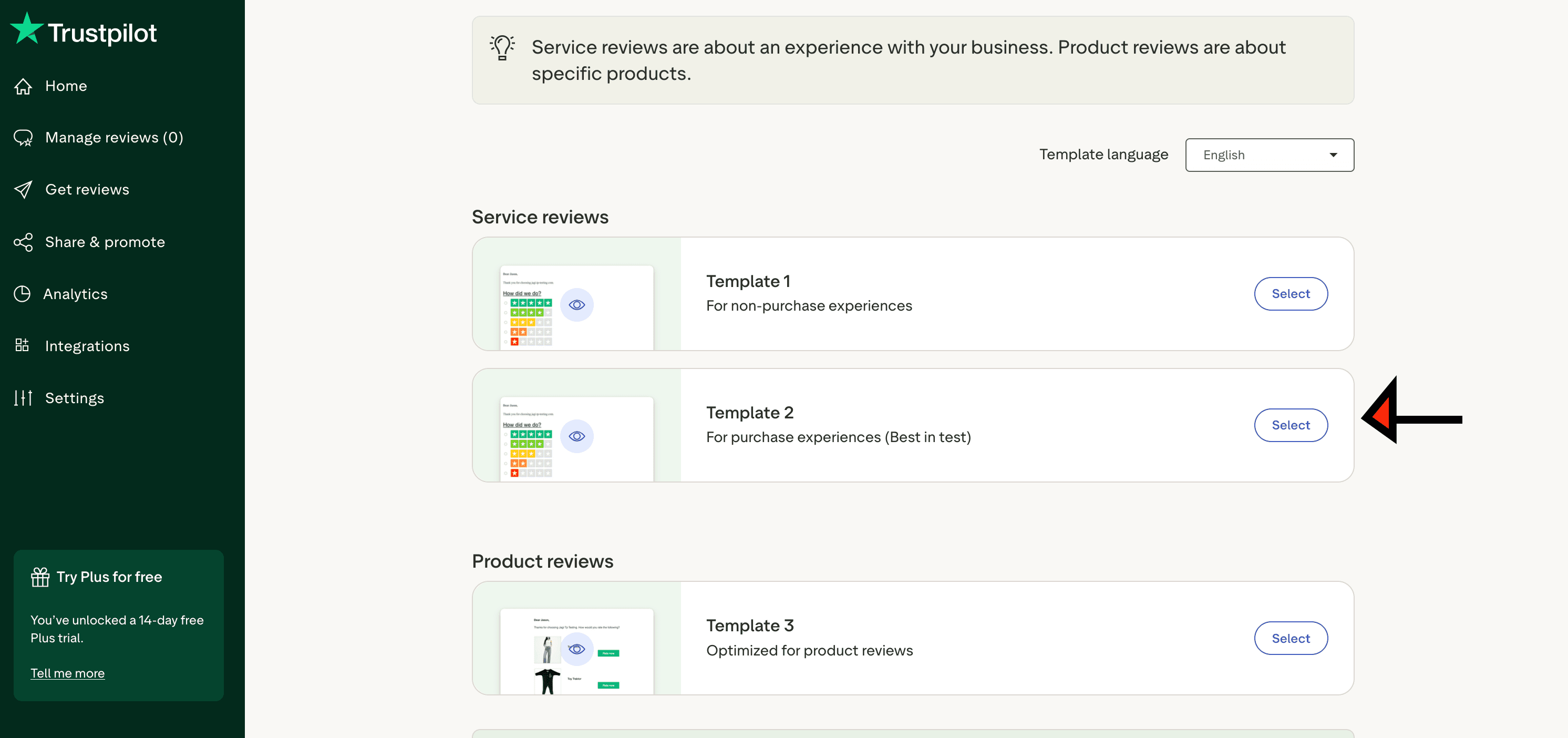
Pick the template you want to use for service reviews and continue.
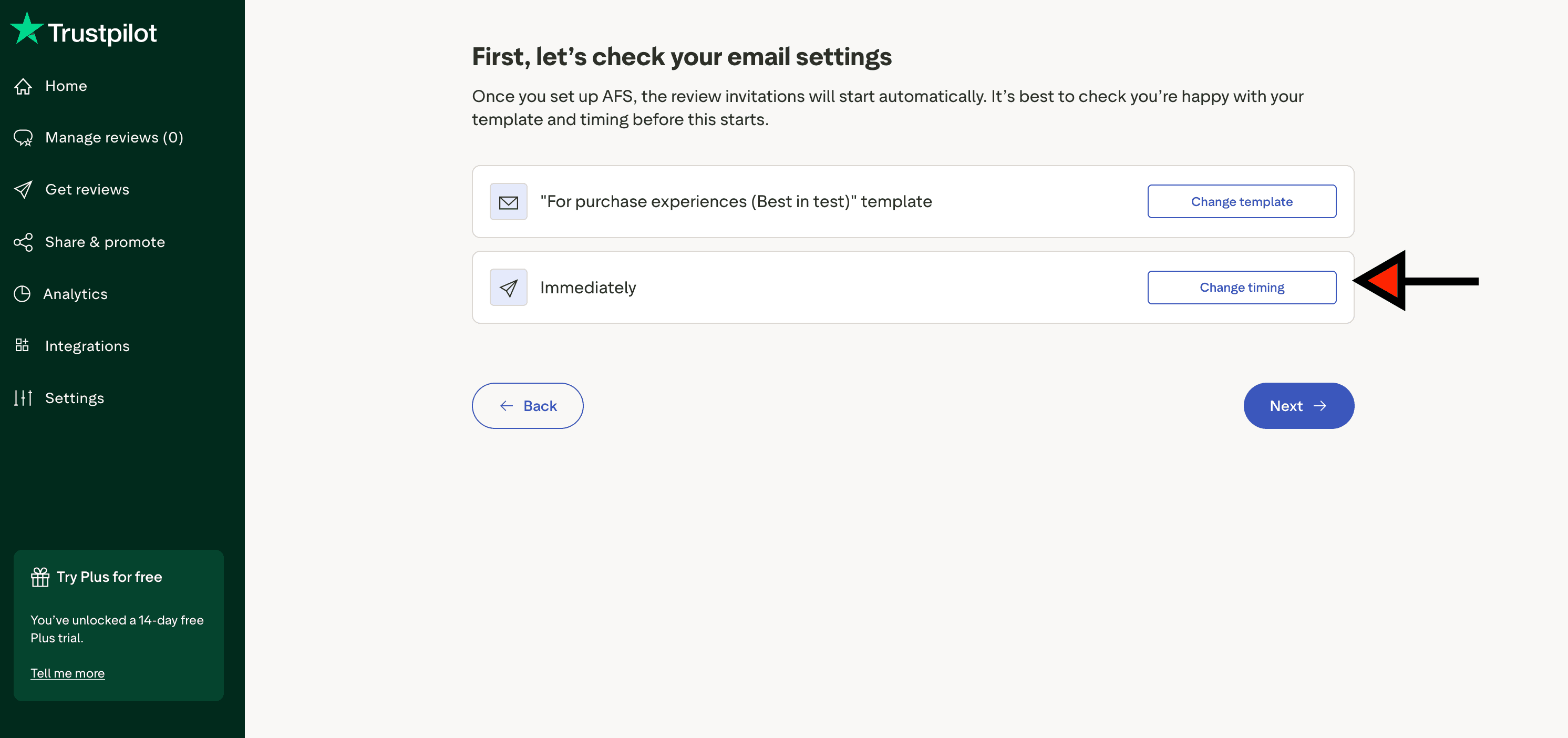
On the email settings screen, click "Change timing" to control when invitations are sent.
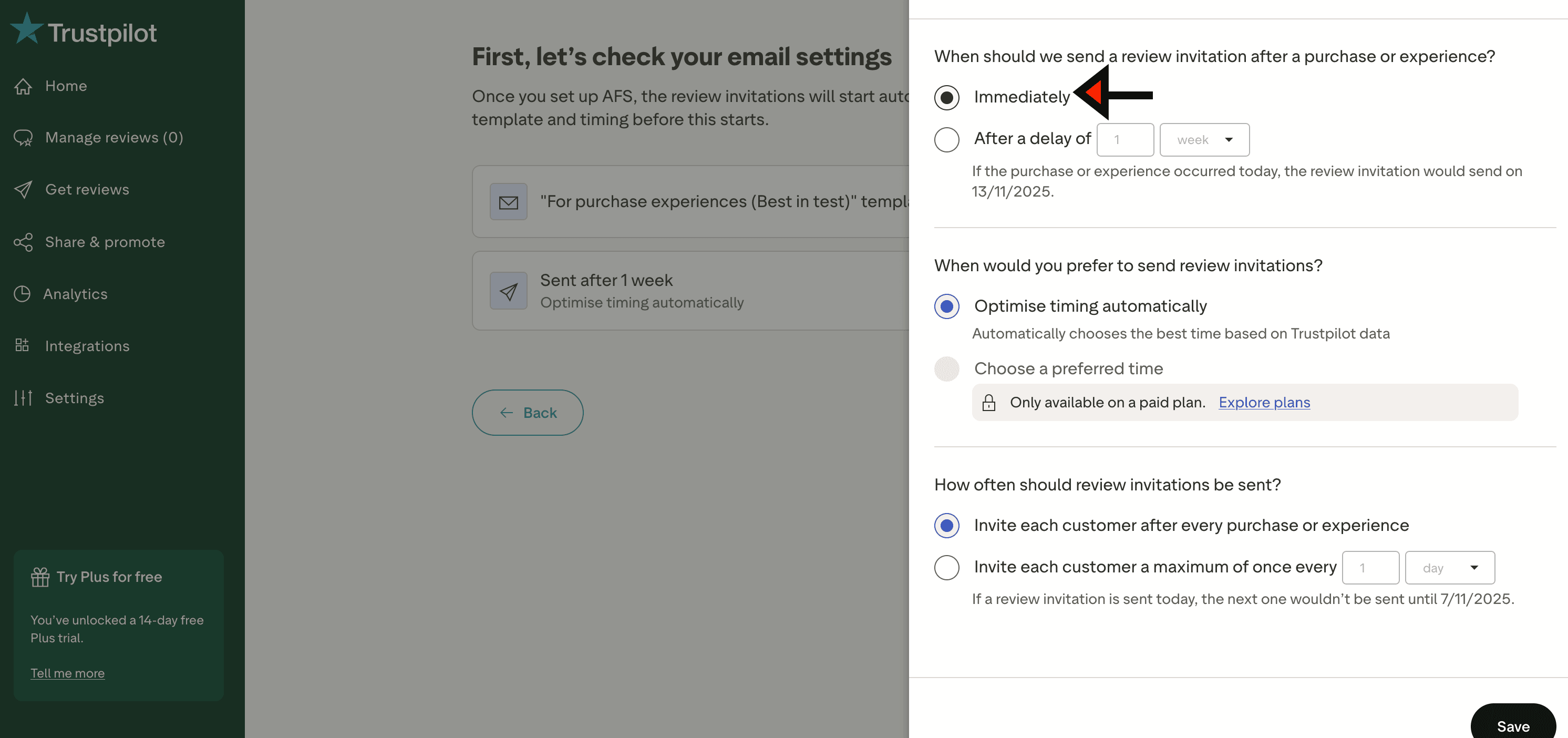
In the side panel, choose your timing preferences (example shown: Immediately), then save.
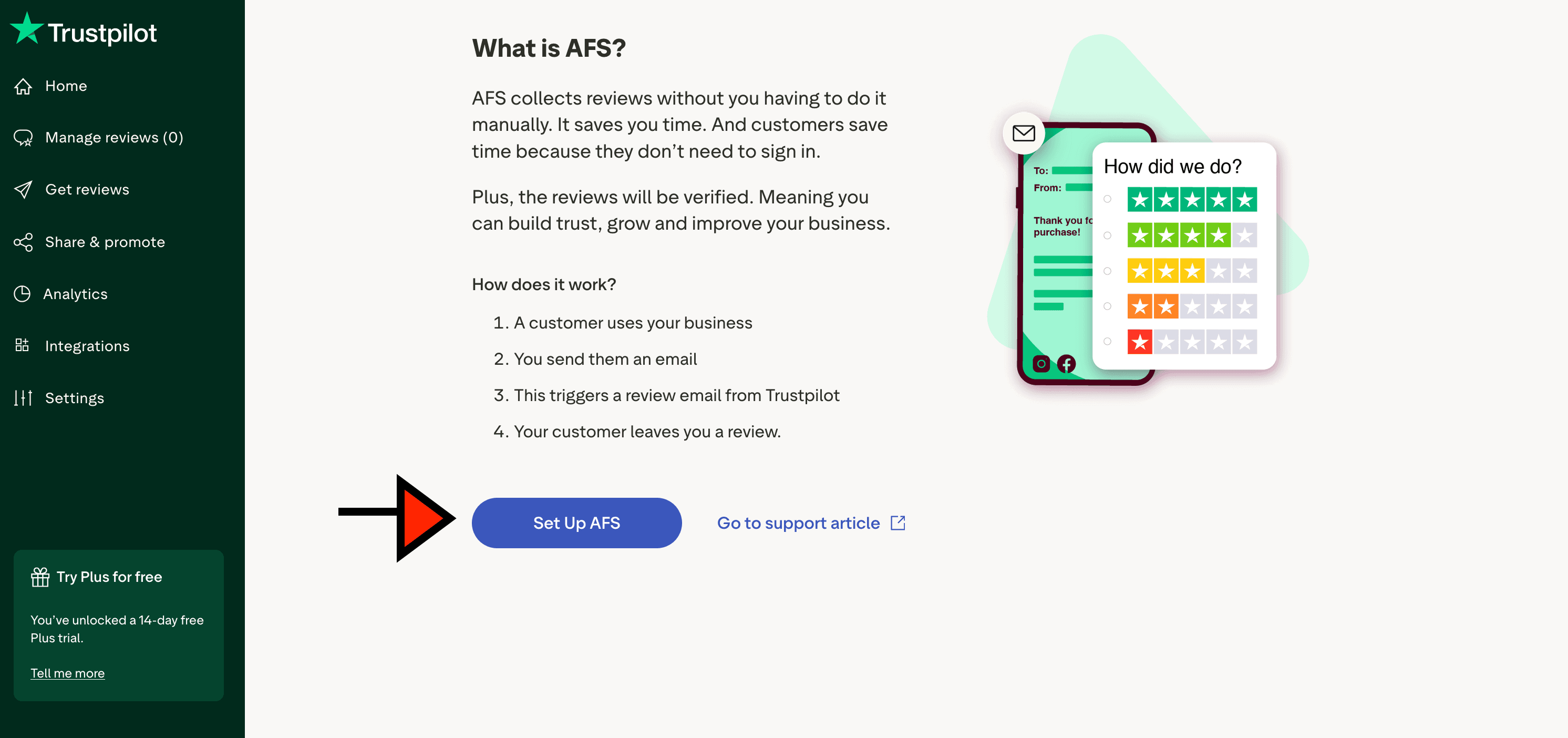
Continue to the AFS setup screen and click "Set Up AFS".
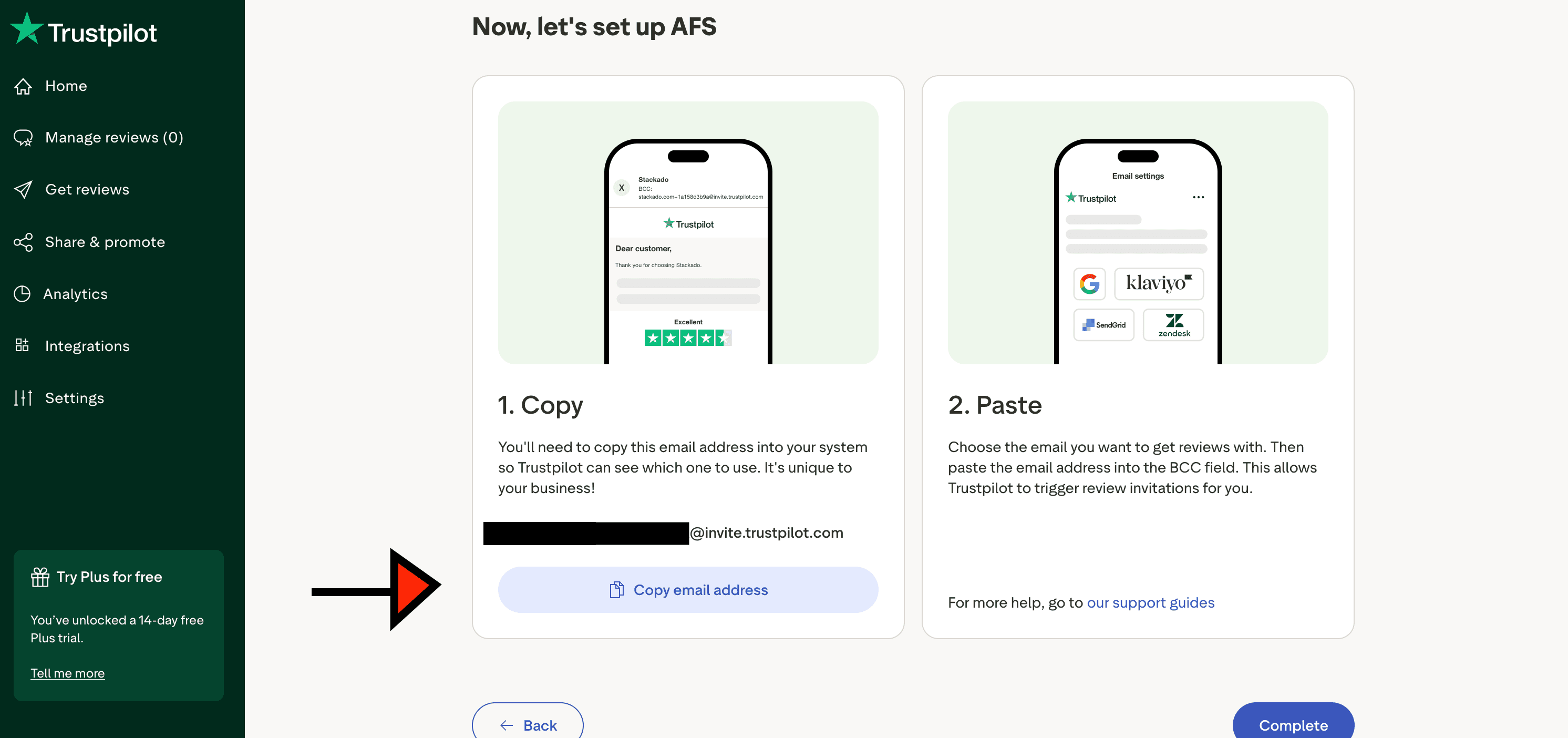
Copy the generated invite value on this step and paste it into your Trustpilot Invite Link field.
After you paste your invite details into your Buzz Bandit order, submit your order details and we will handle the rest.